
A step-by-step interactive manual for managing your institution's profile.
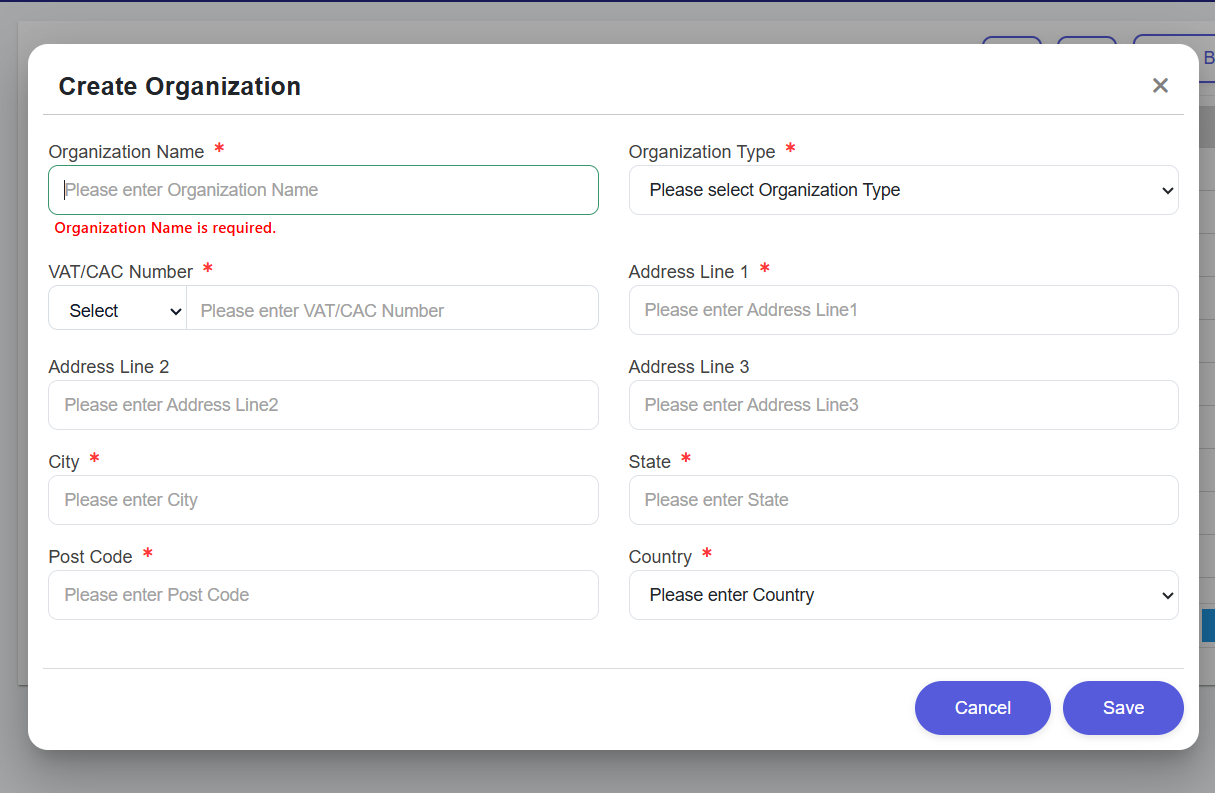
This screen is where the FI enters legal organization details and completes the mandatory onboarding fields.
Saving this form creates the institution profile and the next page shown is the organization details screen for post-creation management.
After successful creation, users proceed to profile management, logo update, and organization-level technical configuration.
Address lines 2 & 3 are optional. Country defaults to the onboarded region.
Once created, you can manage your institutional metadata and logo via the Details Page.
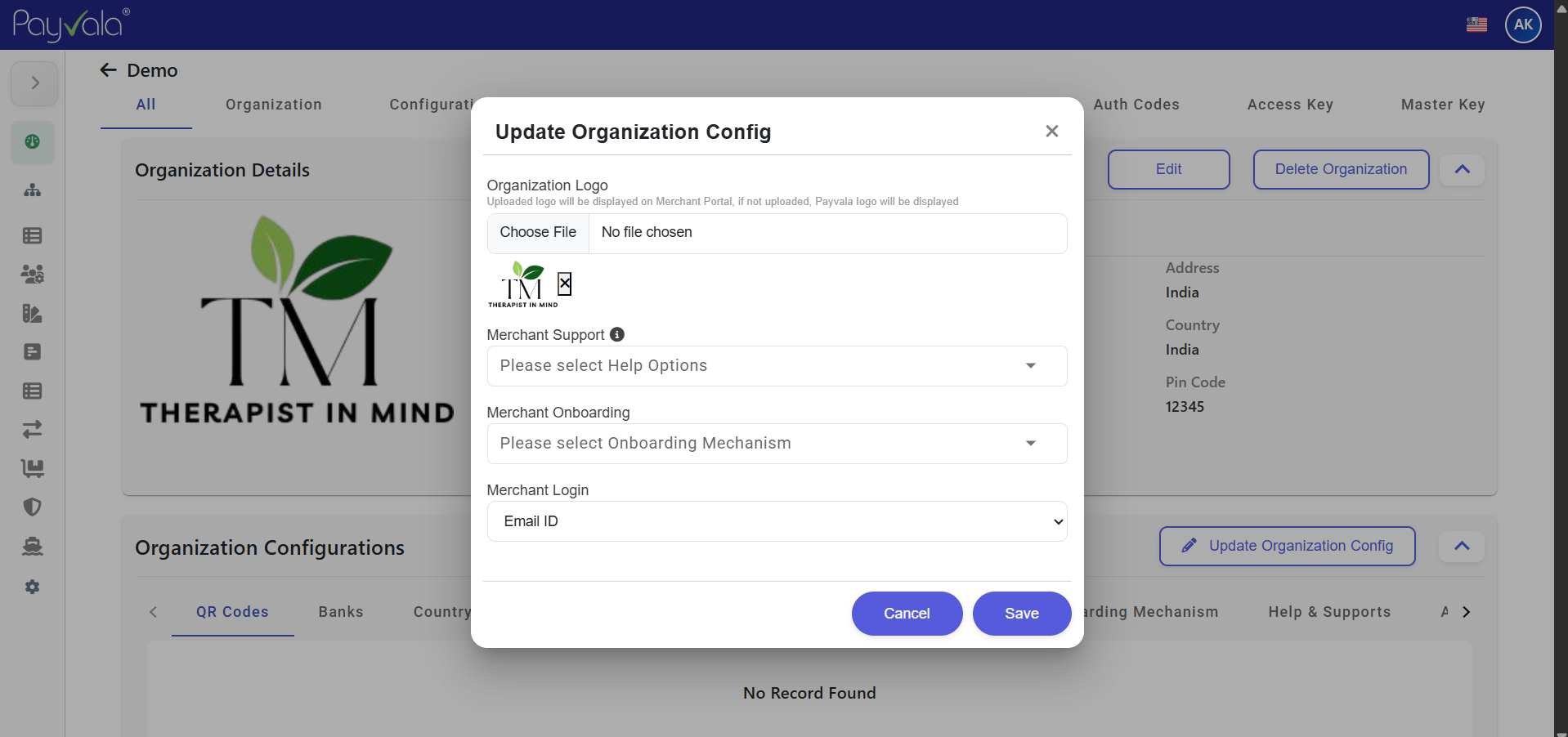
Clicking the logo upload area opens the branding update flow where the institution image can be replaced.
After editing organization details, Save commits the changes and keeps the user on the details page with updated values.
Discard exits the current edit attempt and returns the page to the last saved organization state.
Direct Action: When clicked, the portal validates the form and commits edits to the database. Try clicking it here to see the feedback!
Safety Discard: Reverts the form to the last saved state. Hover to see the warning color, or click to simulation discarding.